Precision Voltage String - Part 3
Two Design Methods using Excel
CIRCUIT
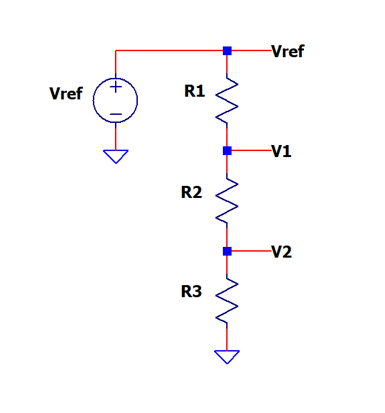
Excel file: voltage-divider-string-design-calc-1.xlsx
Part 1 - intro to precision voltages using a resistor divider.
Part 2 - how accurate are these voltages?
Part 3 - two cool design methods using advanced Excel functions.
I thought it'd be useful (and fun) to learn some Excel functions that can be applied to circuit design. As part of a project, I was asked to create voltages for self-test using a resistor string at 10% and 90% of Vref.
Design Goal: Vref = 5V, V1 = 4.5V, V2 = 0.5V and Rtot = 10k
Here's a couple of cool ways using Excel's advanced functions.
- Matrix Algebra - write the circuit equations in matrix form & solve for the
Rs.
- Solver Function - enter the circuit design goal and constraints.
The voltage levels are easily calculated from the two equations.
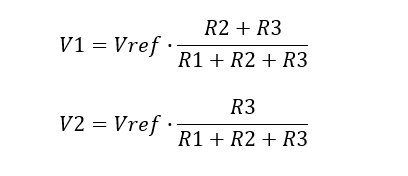
However, how do we find R1, R2 and R3 given the desired levels?
MAXTRIX ALGEBRA
Always satisfying to see our school days mathematics applied to a real-world circuit design. While a fairly simple circuit, the method is easily extended to more complex designs.
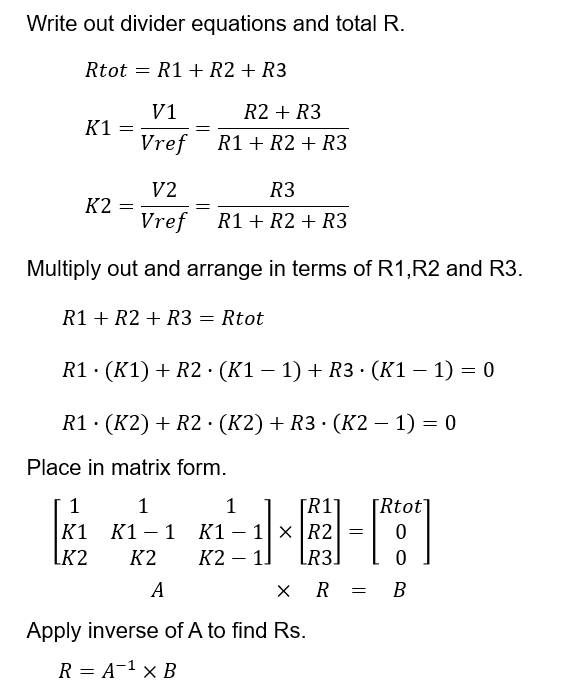
In spreadsheet-land, the cells might look like
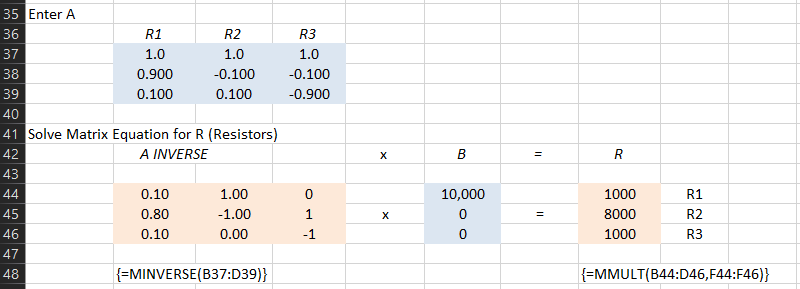
Excel calculates the inverse of matrix A using an array function - one that performs multiple calculations on multiple cells! To enter an array function over multiple cells - you must hit Control-Shift-Enter not just Enter.
The cells in ORG under A INVERSE apply the array function
{=MINVERSE(B37:D39)}
The cells in ORG under R apply the multiply array function to A-1 x B.
{=MMULT(B44:D46,F44:F46)}
VERIFY DESIGN Do the R values meet the design spec? A quick calculation verifies the voltages V1 = 4.5V and V2 = 0.5V a success!
Choose new values for V1 and V2 - for example, suppose the target is 95% and 5% of Vref = 4.0V. What are the resistors needed to achieve 3.8V and 0.2V?
SOLVER FUNCTION
Discovering the Solver Function was eye opening - very powerful!
Here's the spreadheet BEFORE solving (default values for resistors R1=R2=R3=1k).
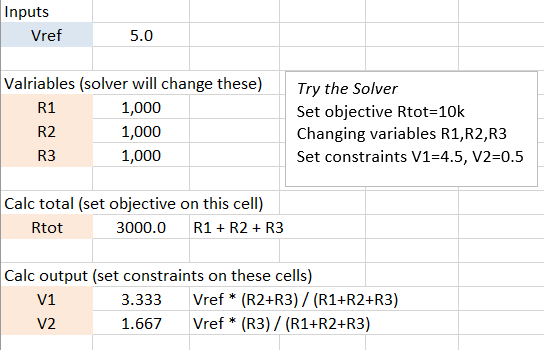
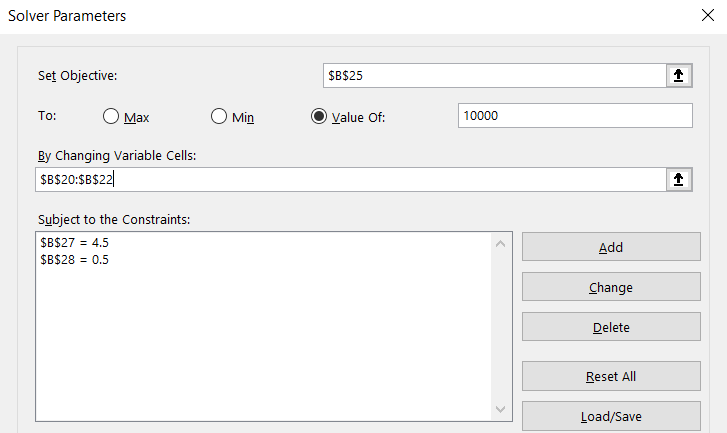
Open the Solver Menu (Data > Solver) then
- Set the Objective: Rtot=10k
- Set the Variables to Change: R1,R2,R3
- Set the Contraints: V1=4.5V, V2=0.5
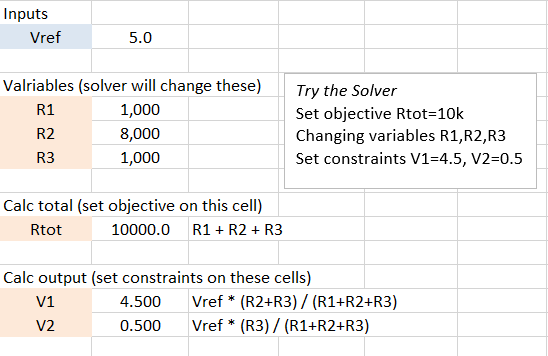
Here's the spreadheet AFTER hitting the Solve button. Check out the adjusted values of R1-R3 as well as Rtot and V1,V2!
Choose new values for V1 and V2 - for example, suppose the target is 95% and 5% of Vref = 4.0V. Turn the Solver loose on the resistors needed to achieve 3.8V and 0.2V.
You can imagine a more challenging circuit design might benefit from this advanced function.
EXCEL DESIGN CALCULATOR
Download the Excel design calculator file voltage-divider-string-design-calc-1.xlsx.
- Three design methods: Intuitive, Matrix, Solver.
- Play in the sandbox, change values, predict what happens!